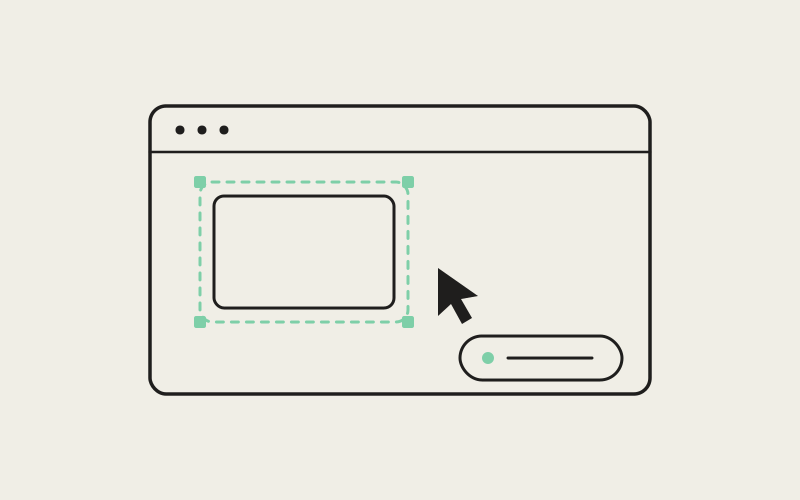
"The button's a bit too far to the right and the shadow feels too heavy" is a sentence a developer says to a teammate every day without a second thought, and a sentence an AI coding agent has to guess its way through every single time. Turning something you can see into words precise enough to act on is inherently lossy — "a bit too far" hides a margin value, "too heavy" hides a box-shadow spec, and the agent is left inventing the very numbers a human could have read straight off the page. Design Mode, a capability built into Influxx's embedded browser, skips the guessing entirely: click the element that looks wrong, and Influxx hands the agent its actual HTML, its actual computed CSS, and a cropped screenshot of exactly that element — the real values the browser is already rendering, not anyone's attempt to describe them.
The Translation Tax on Every Visual Bug
When something goes wrong visually and you're working with an AI coding agent, it's tempting to assume the bottleneck is the agent's coding ability — that it just doesn't understand CSS well enough, or can't reason about layout. In practice, that's rarely the actual failure. Most agents are perfectly capable of writing a correct spacing adjustment or a correct shadow declaration once they know what value belongs there. The friction sits one step earlier, in the translation a human has to perform first: converting something seen with their own eyes into a sentence specific enough for an agent to act on without guessing.
That translation step is where precision quietly leaks out of the request.
- Spacing becomes an adverb: "a bit too far to the right" could mean two pixels or twenty, and an agent asked to fix it has to pick a number and hope it lands close to what you meant.
- Color and depth become a feeling: "the shadow feels too heavy" doesn't specify blur radius, spread, opacity, or offset — any one of which could be the actual thing responsible for the look you don't like.
- Nobody mentions which rule is actually winning: the visible style on screen is frequently the result of a specificity fight between several competing declarations, and a description of what it looks like says nothing about which rule an agent would need to change to fix it.
None of this is a knock on anyone's ability to write a clear bug report. It's a structural limit of language: words are a compressed format for something that, on screen, is already expressed with total precision. The fix isn't asking developers to write better descriptions. It's giving the agent the thing the description was always a stand-in for.
What Gets Captured When You Click
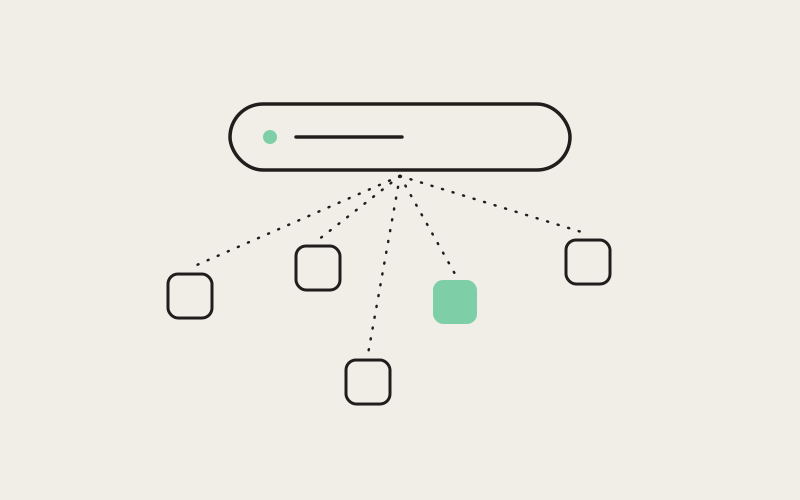
We built Design Mode on top of a full embedded browser already inside the Influxx cockpit — an actual Chromium-based browser pane, not a simplified preview panel bolted onto a chat window. Point that browser at whatever you're building, switch into Design Mode, and click on any element on the rendered page. Influxx doesn't take a mental note of what you clicked; it captures the element itself, in three concrete forms, and drops all three straight into an agent's prompt as ready context. It's best understood as a browser-based visual design tool for AI coding agents — not a separate design app to learn, but a way of turning the browser you're already pointed at your own work into a precise source of context for whichever agent is doing that work.
Three Artifacts, One Click
- The actual HTML: the real markup for that element, exactly as the browser rendered it — not a paraphrase of "it's a button with an icon in it."
- The actual computed CSS: the final values the browser applied after resolving every competing rule, inherited property, and cascade conflict — the real padding, the real color, the real shadow, already resolved.
- A cropped screenshot of just that element: the visual context a human would naturally reach for, scoped to the thing in question instead of a full-page capture the agent has to search through.
Instead of a developer opening dev tools by hand, copying markup, describing colors and spacing in words, and separately pasting a screenshot into the chat, Design Mode collapses that entire multi-step ritual into a single click.
"A screenshot tells an agent what something looks like. It doesn't tell the agent why it looks that way. We wanted the agent to see what the browser sees — the real box model, the real computed shadow, the real color value — instead of our best attempt at putting those things into a sentence."
— Elena Vasquez, Director of Design at ETAPX
Screenshots Show the Symptom, Not the Cause
It's worth being direct about why a cropped screenshot alone was never going to close this gap, because it's the most obvious partial solution and the one most tools stop at. A screenshot is an excellent record of what something looks like. It is not a record of the CSS producing that look. Handing an agent an image of a button with a heavy shadow still leaves it guessing at blur radius and opacity from pixels — a fundamentally harder and less reliable inference than reading the value directly.
Our answer was to stop treating the visual and the technical as separate problems that need separate evidence. Design Mode sends the real markup and the real computed styles, so the agent doesn't have to guess numbers, alongside a cropped image, so it also has the visual framing a human would use to judge whether a fix actually worked. Neither half substitutes for the other. The screenshot without the CSS is a guess wearing a picture. The CSS without the screenshot is correct values with no visual anchor for what "looks right" even means in context.
"Computed styles are the detail that actually matters here. A stylesheet rule can get overridden five different ways by the time it reaches the screen — specificity, inheritance, a later rule, a framework's own defaults. The computed value is the one number that's already survived all of that. That's what we hand the agent, so it's reading the value that actually won, instead of reverse-engineering a cascade to figure out which rule to touch."
— Daniel Kwon, Staff Engineer, Agent Orchestration at ETAPX
It's a Browser Tab, Not a Snapshot
We built Design Mode on a real embedded browser rather than a static image renderer on purpose, and that choice is why it behaves like any other browser tab pointed at a locally running dev server — because that's exactly what it is. Click into a live, interactive, running application exactly as a user would experience it: hover states resolve, a modal you opened stays open while you inspect an element inside it, and a component rendered by client-side JavaScript after the page loads is just as clickable as one baked into the initial HTML.
Interactive, Not Exported
That distinction matters more than it sounds like it should. A static export or a simplified preview can only show you what a page looked like at the moment it was captured — fine for a layout that never changes state, useless for a dropdown that only renders once you open it, or a validation error that only appears after a failed form submission. Design Mode doesn't have that limitation, because there's no export step to go stale. You're looking at the actual running app, so you can click the element in whatever state it's actually in — mid-interaction, post-error, expanded, collapsed — and Design Mode captures exactly that.
"I used to screenshot the broken state, open dev tools in a separate window, copy the computed padding and shadow values into a scratch note, and then paste all of it into the chat with a paragraph explaining what I meant. Now I click the element while it's actually broken on screen, and that whole ritual is just gone."
— Priya Malhotra, frontend engineer building a scheduling product
One Worktree, One Running Preview, One Agent
We designed Design Mode's most natural pairing around the way Influxx already runs multiple agents at once, each in its own isolated git worktree. Fan a task out across three or four agents and it's common for each one to be running its own local dev server against its own copy of the code, each on a different port, each rendering a slightly different version of the same screen while the agents work.
Without a way to keep those running previews scoped to the attempt they belong to, visual feedback turns into exactly the kind of ambiguity Design Mode is built to remove: a developer eyeballing "the app" as one shared, blurry mental model instead of several distinct, comparable versions of it. We built Design Mode to avoid that by staying attached to whichever worktree's preview you actually opened it against. Open the embedded browser on the worktree where the layout looks off, click the specific element that's wrong in that specific version, and the HTML, computed CSS, and screenshot you capture go straight to the agent responsible for that worktree — not to a shared conversation where it's unclear which running attempt the feedback was even about.
Scoped Feedback, Not Shared Guesswork
The pairing works because both halves are already true independently: worktrees keep each agent's code and running preview physically separate, and Design Mode keeps the visual feedback loop attached to whichever preview you clicked into. Put together, a developer comparing several parallel attempts at a redesign can give each agent its own precise, worktree-specific correction, instead of trying to describe in words which running version they're even talking about.
Frequently Asked Questions
What exactly does Design Mode send into the agent's prompt?
Three things, captured from the single element you click: its actual HTML markup, its actual computed CSS, and a cropped screenshot of just that element. All three land in the agent's prompt together, as ready context, rather than as something you have to describe or attach by hand.
Do I need to know CSS or have dev tools open to use it?
No. That's the point of Design Mode — it replaces the dev-tools-and-copy-paste routine, not the CSS knowledge behind it. You click the element that looks wrong; Influxx captures the underlying markup and styles for you. You don't need to already know which property is responsible for the problem before you start.
Does Design Mode only work on locally running apps, or can I use it on a deployed site too?
Design Mode works against any page rendered in Influxx's embedded browser, including a locally running dev server, which is where most day-to-day UI iteration happens. Because the embedded browser is a real browser rather than a specialized dev-server viewer, it behaves the same way pointed at any URL it can load.
How is this different from just pasting a screenshot into the chat?
A screenshot shows an agent what something looks like, not the CSS producing that look — it still has to guess at spacing units, exact colors, and shadow values from pixels. Design Mode sends the actual computed values alongside the cropped image, so the agent has both the visual context and the precise numbers, instead of one or the other.
Does it work with dynamic UI states, like a dropdown or an error message that only appears after an interaction?
Yes. Because Design Mode is built on a real, interactive embedded browser rather than a static renderer, it can capture whatever state the page is actually in — mid-interaction, post-error, expanded, or collapsed — rather than only the state a page loads into by default.
Can I use Design Mode separately against different worktrees when I'm running several agents in parallel?
Yes, and that's the pairing it was built for. Each worktree can run its own local preview, and opening Design Mode against a specific worktree's preview keeps the element you click, and the context it generates, scoped to the agent responsible for that version — rather than one ambiguous "the app" you have to mentally track across several parallel attempts.
We didn't build Design Mode to make an agent better at writing CSS. We built it to remove the step where a human had to become a translator first — turning something seen with their own eyes into words precise enough to act on without guessing. Point the embedded browser at a running app, click the element that's actually wrong, and hand the agent the same thing the browser is already rendering: the real markup, the real computed styles, and the real picture, all at once.